For the complete documentation index, see llms.txt. Markdown versions of all docs pages are available by appending .md to any docs URL.
LLM (OpenAI)
Verified Code examples on this page have been automatically tested and verified.Route requests to OpenAI’s chat completions API with the agentgateway binary.
Configure the agentgateway binary to route requests to the OpenAI chat completions API.
Before you begin
Install the agentgateway binary.
To install the latest release:
curl -sL https://agentgateway.dev/install | bash
- Get an OpenAI API key.
Steps
Route to an OpenAI backend through agentgateway.
Step 1: Set your API key
Store your OpenAI API key in an environment variable so agentgateway can authenticate to the API.
export OPENAI_API_KEY='<your-api-key>'Step 2: Start agentgateway
You add the model from the UI in the next steps, so you can start agentgateway with an empty config file.
echo '{}' > config.yaml
agentgateway -f config.yaml
Example output:
info app serving UI at http://localhost:15000/uiStep 3: Enable LLM
- Open the agentgateway UI.
- On the Gateway Overview, find the LLM row and click Enable LLM.
Step 4: Add a model
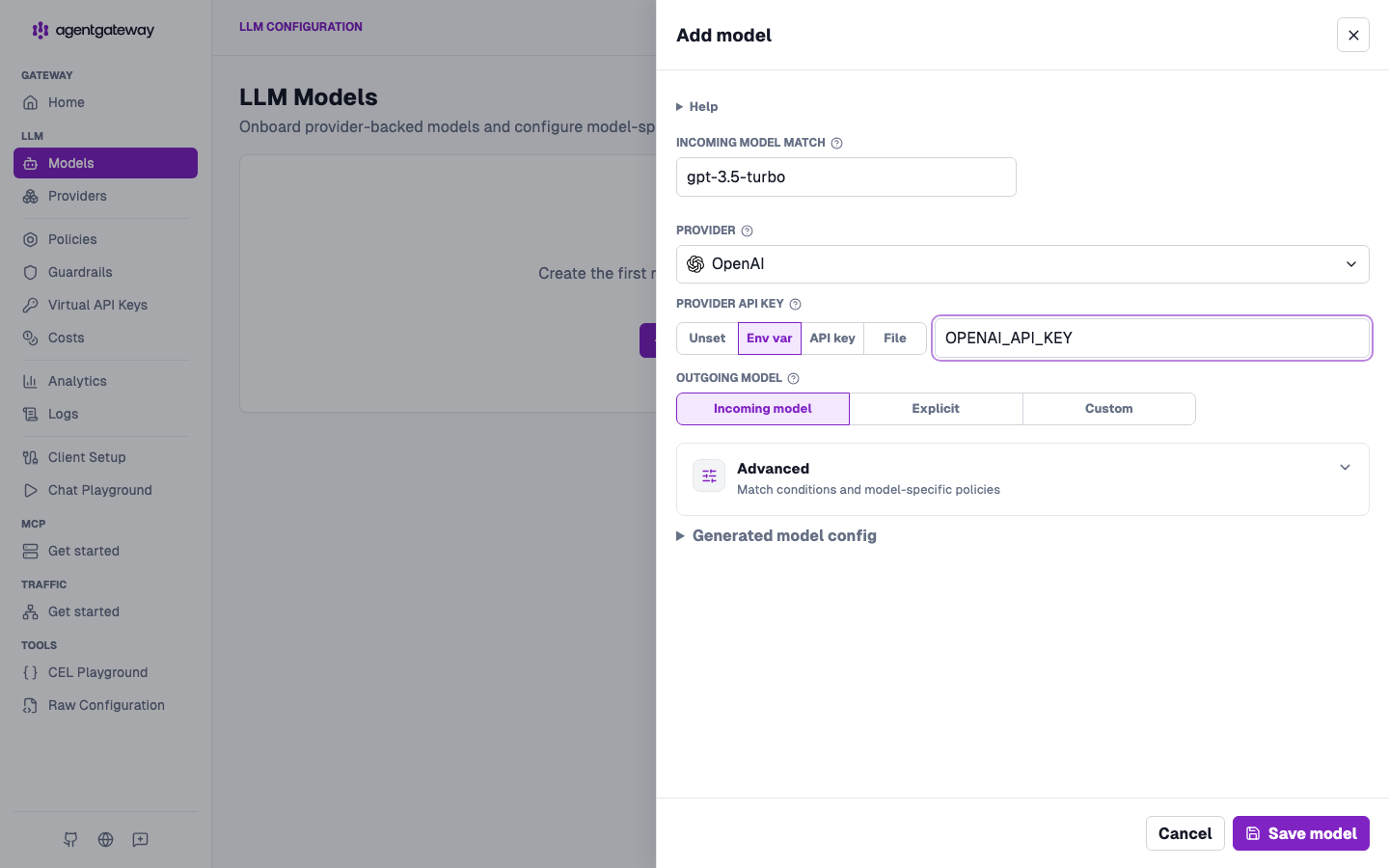
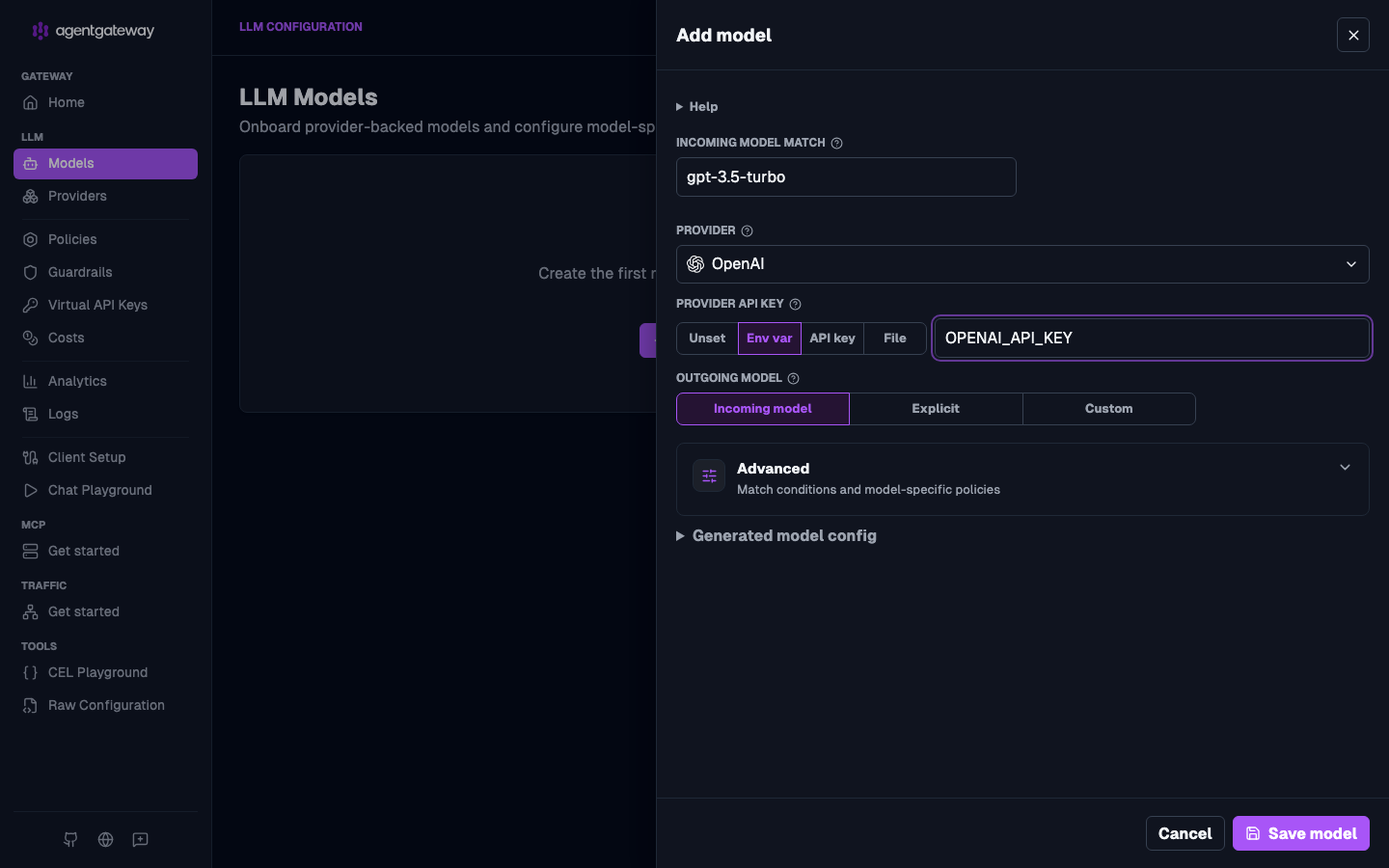
- In the LLM section of the navigation menu, click Models, and then click Add model.
- For the Incoming model match, enter the model name that clients send, such as
gpt-3.5-turbo. - From the Provider list, select OpenAI.
- For the Provider API key, click Env var and enter
OPENAI_API_KEY(the variable you set in Step 1). - Click Save model.
Step 5: Send a chat completion request
Send a request from the command line, or try it in the built-in playground.
From another terminal, send a request to the chat completions endpoint:
curl -s http://localhost:4000/v1/chat/completions \
  -H "Content-Type: application/json" \
  -d '{
    "model": "gpt-3.5-turbo",
    "messages": [{"role": "user", "content": "Say hello in one sentence."}]
  }' | jq .
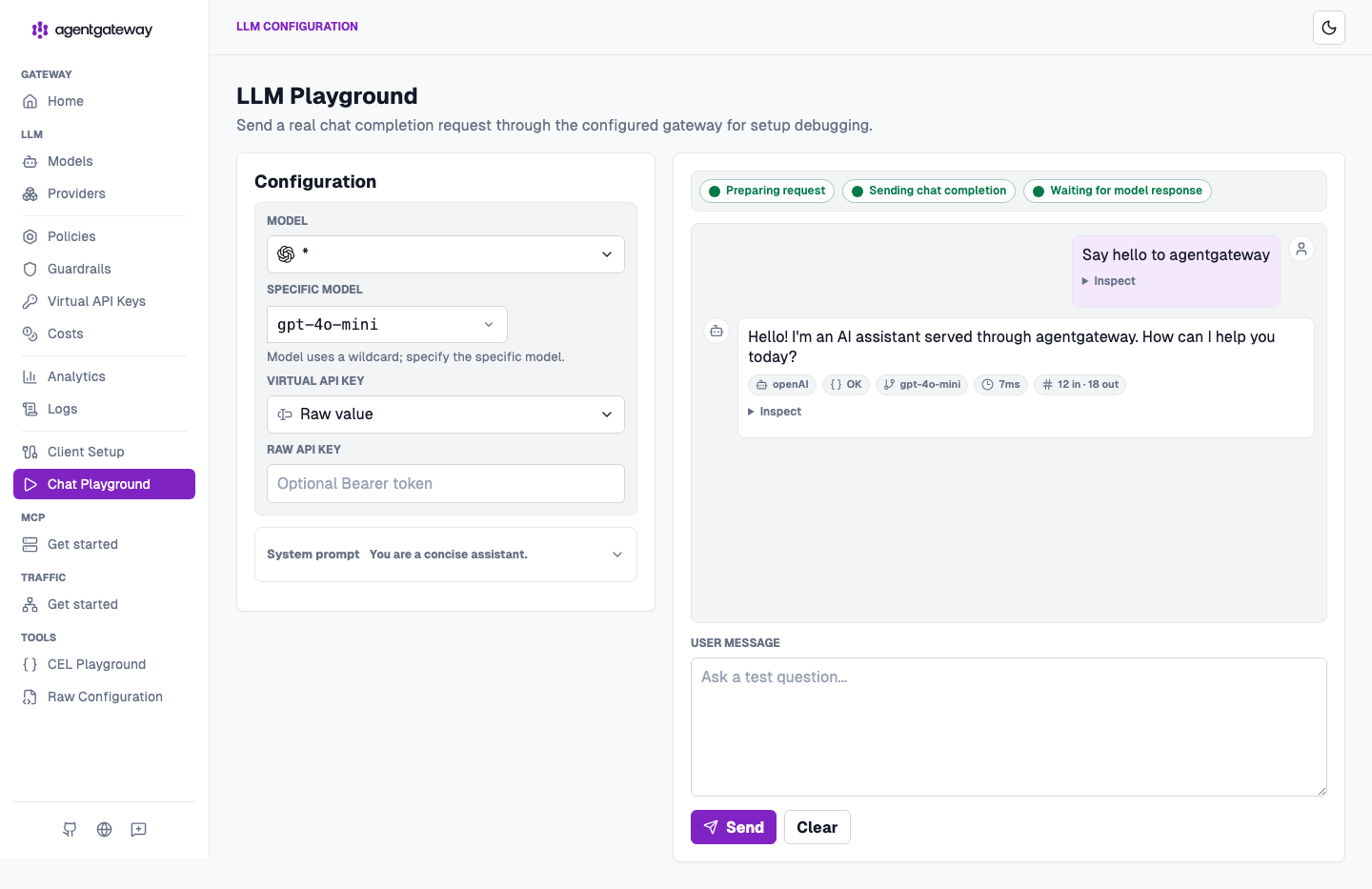
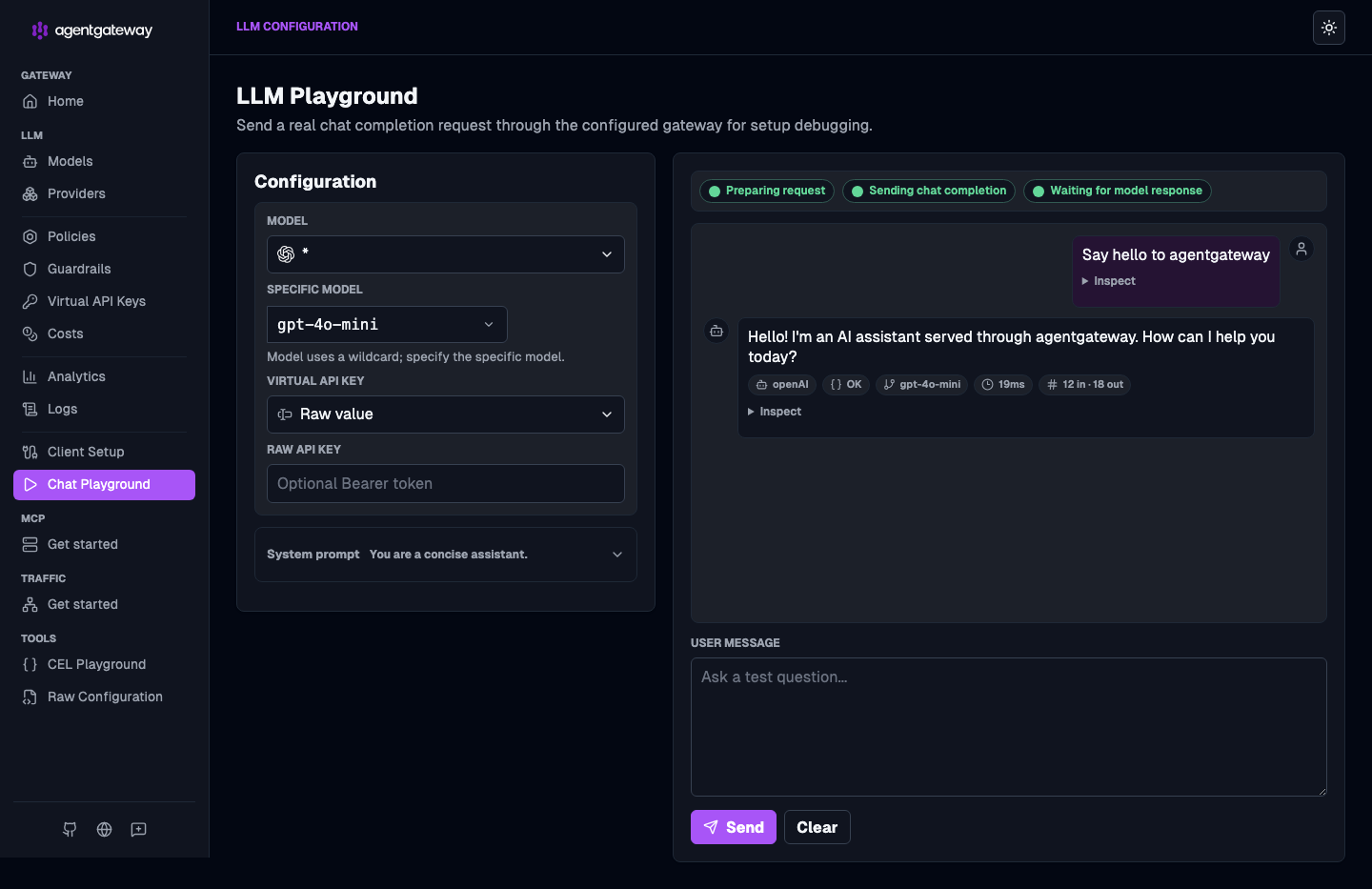
Or open the LLM playground, enter a prompt in the User message box, and click Send.
Next steps
Check out more guides related to LLM consumption with agentgateway.